Understanding Download Health in NZBGet
NZBGet includes a Health value that shows how complete and reliable a download is during processing.
This is one of the most useful features in NZBGet for understanding how well your Usenet downloads are completing. When diagnosing completion issues, comparing results over time, or understanding why some downloads require repair, download health is one of the best places to start.
When articles are missing, delayed, or unavailable, NZBGet records that as part of the download’s health. This makes it easy to see whether a download:
- Completed fully
- Required repair
- Failed because too much data was missing
NZBGet tracks a Health value during processing, stores a final health value in the History tab, and also calculates a CriticalHealth value based on the number and size of PAR files.
NZBGet also includes built-in diagnostics such as connection tests and speed tests in the STATUS tab, which can help identify broader performance issues.
What Download Health Means in NZBGet
Download Health represents the percentage of required articles successfully retrieved from your Usenet server.
During the download process, NZBGet tracks how many articles are available compared to how many are missing.
If some articles are missing, NZBGet attempts to recover them using PAR2 repair blocks included with the post.
The final health value reflects:
- Articles successfully downloaded
- Articles that were missing
- Articles recovered through repair
- Articles that could not be recovered
A high health value usually means the download completed normally with minimal repair. Lower values suggest missing articles or incomplete downloads.
Where to View Download Health in NZBGet
Download Health can be viewed in several places within the NZBGet interface, depending on whether a download is active or completed.
It appears in:
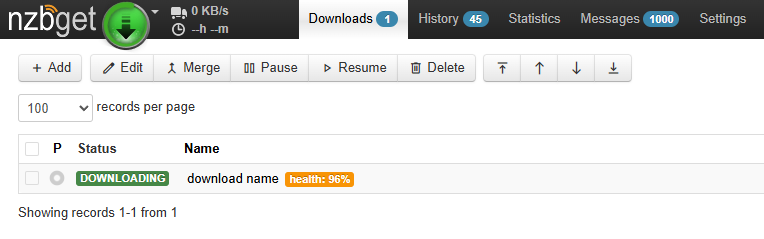
The Download Queue while a download is in progress
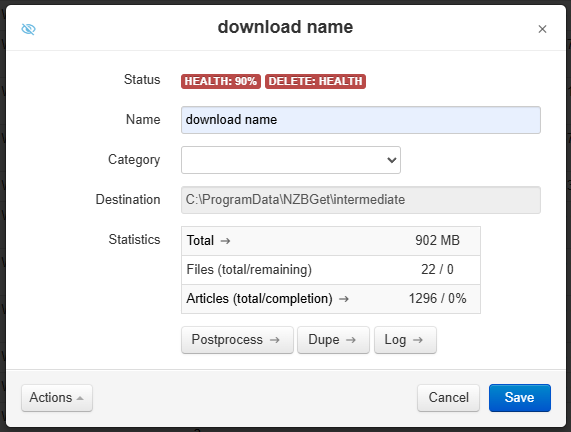
The individual download details in the History tab after download completes
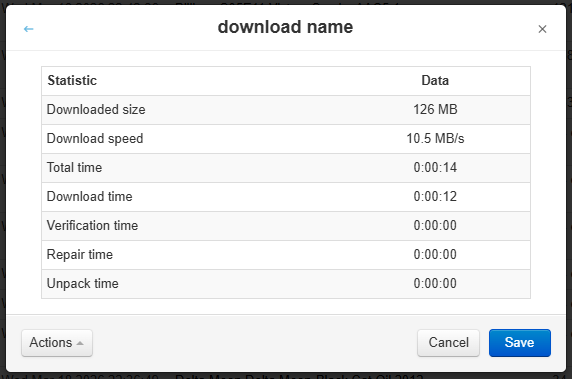
- You can also see the detailed statistics and per-server statistics for individual download (click on Articles under Statistics)
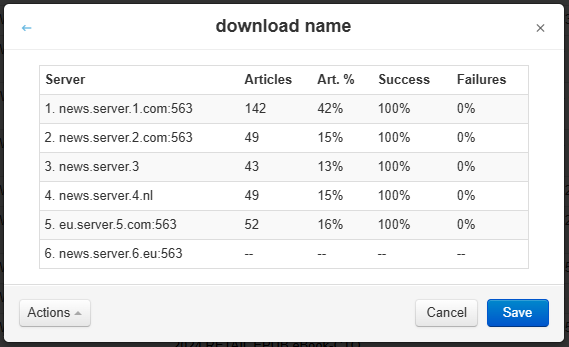
On the Statistics page, you can check Article Statistics for each news server
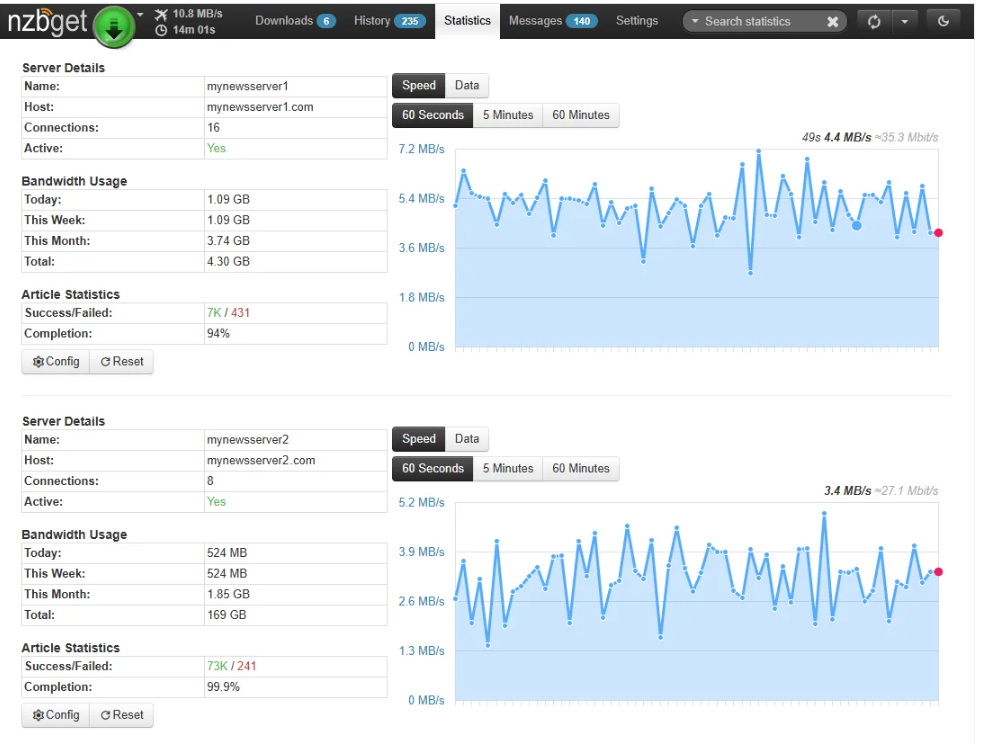
Detailed Statistics view for each download
History → click on the download → Statistics → Total
How to check a download’s health
- Open the History tab in NZBGet
- Click the completed download
- Review the Health value in the status
Understanding Health Values
The health percentage provides a quick indication of how successfully the required file parts are being found on your servers.

High Health (near 100%)
This typically means:
- All required articles were available
- Few or no repair blocks were required
- The download completed normally
In this situation, your Usenet server setup is generally performing well.
Moderate Health (90–99%)
This typically means:
- Some articles were missing
- PAR2 repair blocks were used to recover them
Downloads may still complete successfully, but additional repair work was required.
Occasional repairs are normal on Usenet.
Low Health (below 90%)
This typically indicates:
- Many missing articles
- Large repair operations
- Possible incomplete downloads
If there are not enough repair blocks available, the download may fail.
If this happens frequently, it usually indicates issues with your Usenet server:
- Missing articles on the news server
- Incomplete posts
- Connection problems
- Configuration issues
How NZBGet Uses Repair Blocks
Usenet posts often include PAR2 files, which allow missing data to be reconstructed.
When NZBGet detects missing articles during a download, it automatically starts the repair process using these recovery blocks.
The more repair blocks required, the lower the final health score.
However, as long as enough repair blocks are available, NZBGet can still produce a complete file.
When Low Download Health Becomes a Problem
Low health values are not always an issue.
If repair blocks successfully recover missing data, the download may still complete normally.
However, repeated low health scores can indicate underlying issues.
Common causes include:
- Articles missing from the news server
- Incomplete Usenet posts
- Limited article retention
- Server priority configuration issues
- Connection or timeout errors
Monitoring health values over time helps identify patterns that may affect download reliability.
Using Download Health to Diagnose Problems
Download Health is one of the easiest ways to evaluate overall Usenet performance.
When troubleshooting downloads, look for patterns such as:
- Frequent repairs
- Downloads failing with insufficient repair blocks
- Consistently low health scores
If these occur regularly, additional investigation may be needed.
Possible areas to review include:
- Article availability on the Usenet server (most common cause)
- Server configuration in NZBGet
- Connection reliability
- Network issues
NZBGet includes additional tools for diagnosing these situations, including built-in speed tests and connection testing.
Optimization Tips
Several configuration changes can improve download reliability and health scores.
Use a High Quality Usenet Provider
Download health is heavily influenced by article availability on the server you are using.
Providers with high retention and good completion rates are more likely to have all the required articles available when NZBGet attempts to download them.
If you frequently see downloads with low health values or failed repairs, the issue may be related to missing or unavailable articles on the server rather than your NZBGet configuration.
Using a provider with good retention and completion can significantly reduce missing articles and improve overall download health.
Keep PAR Verification Enabled
PAR verification is an important part of maintaining reliable downloads.
When NZBGet detects missing or damaged articles, it uses PAR2 files included with the post to verify and repair the download.
In NZBGet, this verification process is controlled by the ParCheck setting.
Disabling PAR verification can cause downloads to appear complete even if data is missing or corrupted.
Keeping PAR verification enabled ensures that NZBGet can detect damaged downloads and attempt repairs when recovery blocks are available.
Monitor Download Statistics
Reviewing health values in the History list over time can help reveal useful patterns.
If most downloads consistently complete with high health scores, it usually indicates that articles are being retrieved successfully and the overall setup is working reliably.
If you begin to notice frequent low health values, repeated repairs, or failed downloads, it may indicate issues such as missing articles, incomplete posts, or Usenet server problems. Reviewing the Statistics page can help determine how your news servers are performing and whether article availability is the cause.
Monitoring these trends over time makes it easier to identify potential issues early and determine whether changes to your server setup or configuration may improve download reliability.
Quick Summary: Usenet Download Health
Download Health is a simple but powerful diagnostic tool in NZBGet.
It provides insight into:
- Article availability
- Repair activity
- Download reliability
Monitoring this metric helps identify problems early and optimize overall performance.
When downloads consistently complete with high health values and minimal repair operations, the system is usually operating efficiently.
Introduction
Installation manuals
- Installation on Windows
- Installation on Windows via WinGet
- Installation on macOS
- Installation on macOS via Homebrew
- Installation on Linux
- Installation on Docker
- Installation on Docker - LinuxServer.io version
- Installation on Android
- Installation on Synology
- Installation on QNAP
- Installation on other NAS devices
Building manuals
Configuration
- Backup And Restore Settings
- Performance Tips
- Choosing Cipher
- Behind Other Web Server
- TLS certificate verification
- What is the Default NZBGet Password?
- NZBGet Docker Setup Guide
- NZBGet Port Settings and Access Guide
- How to Configure NZBGet: Complete Setup Guide
- What Is Usenet?
- NZBGet 502 Error: Quick Fix Guide
- How to Upgrade from NZBGet v21.1 to the Latest NZBGet Version
- Slow NZBGet Speeds? Here’s How to Fix It
- NZBGet Performance Optimization Guide
- NZBGet Path and Folder Structure Guide
- How to Link NZBGet with Sonarr, Radarr, and Other Tools
- Sonarr vs VideoSort: How They Work with NZBGet
- NZBGet Storage Guide: Improve Performance with Smarter Path Setup
- How to Configure NZBGet on Android TV
- Using NZBGet with Sonarr and Radarr on Android TV
Performance tuning
- How to Optimize Usenet Performance in NZBGet
- NZBGet SystemHealth: Configuration and Environment Diagnostics
- Testing Usenet Speed and Performance in NZBGet
- Diagnosing and Maximizing Usenet Speeds in NZBGet
- Understanding Download Health in NZBGet
- Finding the Optimal Connection Count in NZBGet
- Primary vs Fill Servers Explained
- Understanding the Statistics Page in NZBGet
Usage
- Quick Filter
- Keyboard Shortcuts
- RSS and duplicate check
- VideoSort
- Console Mode
- Command Line Reference
- Performing Speed Tests
- NZBGet Interface Buttons Explained: What They Do and How to Use Them
- How to Use the NZBGet Status Tab
Development
Extensions
- Extension Scripts
- Post-processing scripts
- Scan Scripts
- Queue Scripts
- Scheduler Scripts
- Feed Scripts
- NZBGet Extension Manager: What It Is and How to Use It
- API reference
News server setup
- Astraweb
- BlockNews
- Cheapnews
- EasyNews
- Eweka
- FreeDiscussions
- Frugal Usenet
- GigaNews
- NewsDemon
- Newsgroup Ninja
- NewsgroupDirect
- Newshosting
- Pure Usenet
- SunnyUsenet
- Supernews
- theCubeNet
- ThunderNews
- TweakNews
- Usenet.Farm
- UsenetExpress
- UsenetServer
- UseNext
- ViperNews
- XLned
- XS News